
Shared Expenses
On this page
- Where It Lives
- Creating a Group
- The Group Page
- Recording an Expense
- Changing the Split
- Default Split
- Planned Expenses
- Editing, Refunds and Cancelling
- Balances and Repayments
- Recording a Repayment
- Reminders
- Foreign Currencies
- Files and Activity
- Inviting People
- Access Levels
- Transferring Ownership
- Managing People
- Keeping the Same Person Across Groups
- Archiving, Leaving and Deleting
- Notifications
- Take the Guided Tour
- Related
Monize keeps track of money you spend together with other people: a trip, a shared apartment, a club. You record who paid for each purchase and who it was for, and Monize works out each person's position and the fewest repayments that settle the group.
Shared entries stay separate from your personal accounts. Adding an expense or recording a repayment here does not move money between bank accounts, and nothing in a group appears in your balances, budgets or reports.
Where It Lives#
Shared Expenses is in the Tools menu on a computer, and in the navigation menu on a phone. It belongs to your own profile: a delegate viewing your data does not see it, and you switch back to your own profile to open your groups.
Screenshot pending: The Shared Expenses page: what you are owed and what you owe across your groups, above the list of groupsThe page has two tabs:
- Groups lists your groups with your position in each. Above the list, Owed to You and You Owe add up your positions across every group, per currency. Switch between Active and Archived groups, or use Search groups.
- People holds your private list of people (see Keeping the Same Person Across Groups).
Click a group to open it.
Creating a Group#
Choose New Group.
Screenshot pending: The New Group form with the group name, your name, the settlement currency and the people taking part- Group Name, for example "Ski trip" or "Apartment bills".
- Your Name is how you appear to the others in this group.
- Settlement Currency is the currency balances and repayments are worked out in. Purchases can still be in other currencies (see Foreign Currencies). The currency is fixed once the group has its first entry.
- People: one row for each person taking part; Add Person adds another row. Nobody needs a Monize account. You can record expenses for everyone and invite them later, or never.
Choose Create Group. Keep one group for the whole trip: each purchase can involve a different selection of its people.
The Group Page#
Screenshot pending: A cabin weekend's expenses: the group totals and your position above the list of purchases and a repaymentAcross the top, Group Expenses is what the group spent, Your Cost is your share of it and You Paid is what you paid, all in the settlement currency. Your position, what you are owed or owe once repayments are counted, is on the Balances tab and in the group list. The switcher beside the group's name jumps to another group.
The tabs below are:
| Tab | What it holds |
|---|---|
| Expenses | Every entry, with search and filters |
| Balances | Each person's position and the suggested repayments |
| Files | Receipts, tickets and photos for the group |
| Activity | Who changed what, and when |
| Settings | People, access, invitations and the group itself |
On Expenses, Search descriptions and notes finds an entry by its text, and the filters below it narrow the list by Entry Type (expenses, refunds, income or repayments), by one of the People, or by a From and To date. Each active filter shows as a chip you can remove. Export CSV downloads the whole group: the entries, every person's share and payment, and the positions.
Recording an Expense#
Choose Add Expense, then Expense.
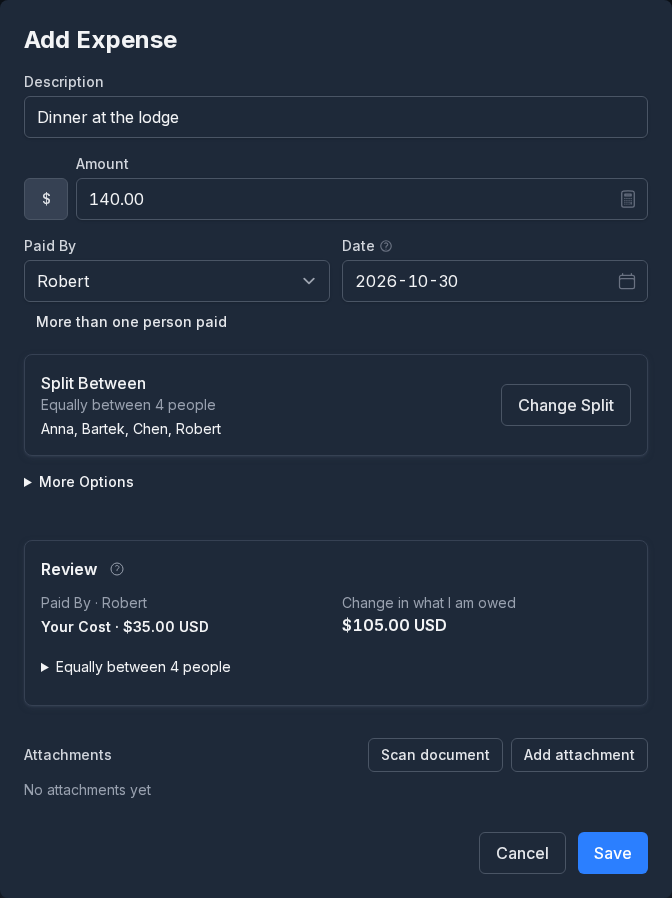
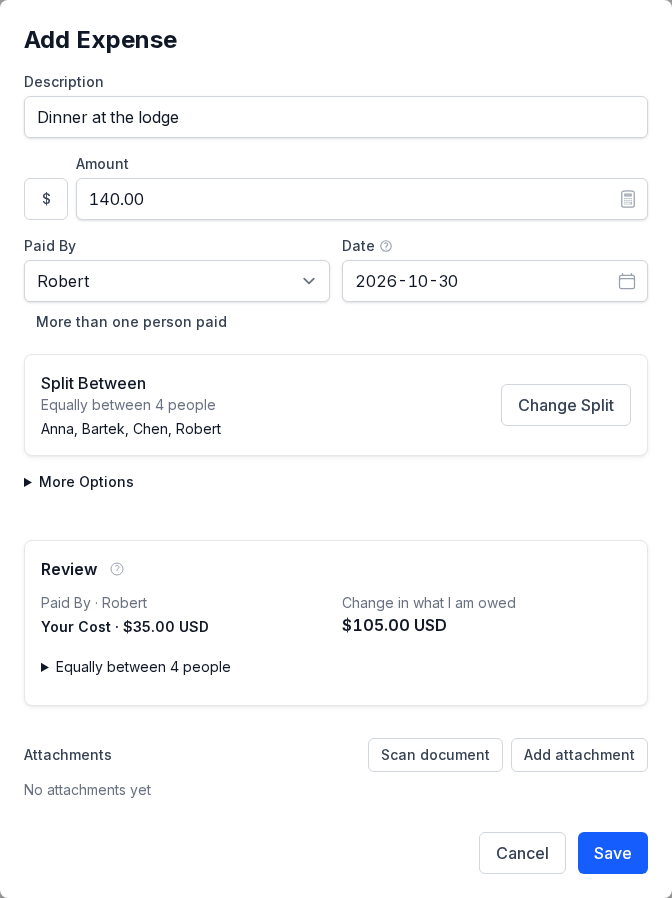
- Description, Amount and its currency, and Date.
- Paid By: who paid. Choose More than one person paid to enter how much each payer contributed; the amounts must add up to the total.
- Split Between shows who the purchase was for. It starts as an equal split between everyone; choose Change Split to change it.
- More Options holds a Note, a Group Label (a free-text tag such as "Food" that the group sees), and the Agreed Exchange Rate when the purchase is in another currency.
- Add a receipt or photo under attachments if you have one. It is shared with the group when you save.
- Check the amounts in the preview and choose Save.
A person can pay without having a share: a friend who paid for your concert ticket is owed the whole amount.
Choose Add Expense, then Income, for money the group received rather than spent, such as a deposit returned to the group or winnings shared between you. It works the same way: Received By replaces Paid By, and the split says who it belongs to.
Changing the Split#
Screenshot pending: The Split Between dialog: Chen is switched off and the dinner is split equally between the other threeEach person has a switch. Turn someone off when they did not take part; they are left out of this expense only. For the people left in:
- Leave every amount blank to split equally.
- Enter a fixed amount or a percentage for a person; whatever is left is split equally between the people whose fields are blank. Zero keeps a person in the split without charging them.
- Use Shares for relative portions: shares of 2, 1 and 1 give the first person half and the others a quarter each.
The line at the top says whether the split is complete, or how much is still to allocate or over-allocated. Split Equally starts again. Choose Apply Split to go back to the expense. Percentages shown while you type may be rounded; the saved amounts are worked out by the server and add up exactly to the total.
Default Split#
When a group always shares costs the same way, such as a 60/40 split of the rent, the owner saves it under Default split in the group's Settings. New expenses start from it. Existing entries keep the split they were saved with, and someone added to the group later is not in the default until you edit it. Use Equal Split For Everyone removes it.
Planned Expenses#
An expense dated in the future is Planned: it is listed, but does not affect balances until its date. Open it on that day to record it.
Editing, Refunds and Cancelling#
Click an entry to open it.
Screenshot pending: An expense opened from the list: the amount, who paid, each person's share, and the Edit, Record Refund and Cancel Entry actions- Edit changes any part of it. Balances follow the change, and the entry's earlier version stays in its history.
- Record Refund records money returned for an expense, such as a cancelled booking. The refund follows the original split, takes earlier refunds into account, and uses the original expense's exchange rate.
- Cancel Entry removes an entry recorded by mistake. Give a reason; its effect is removed from the balances, and it stays in the list and the activity as Cancelled.
Entries are never deleted, so everyone in the group can see what changed.
Balances and Repayments#
The Balances tab shows where everyone stands.
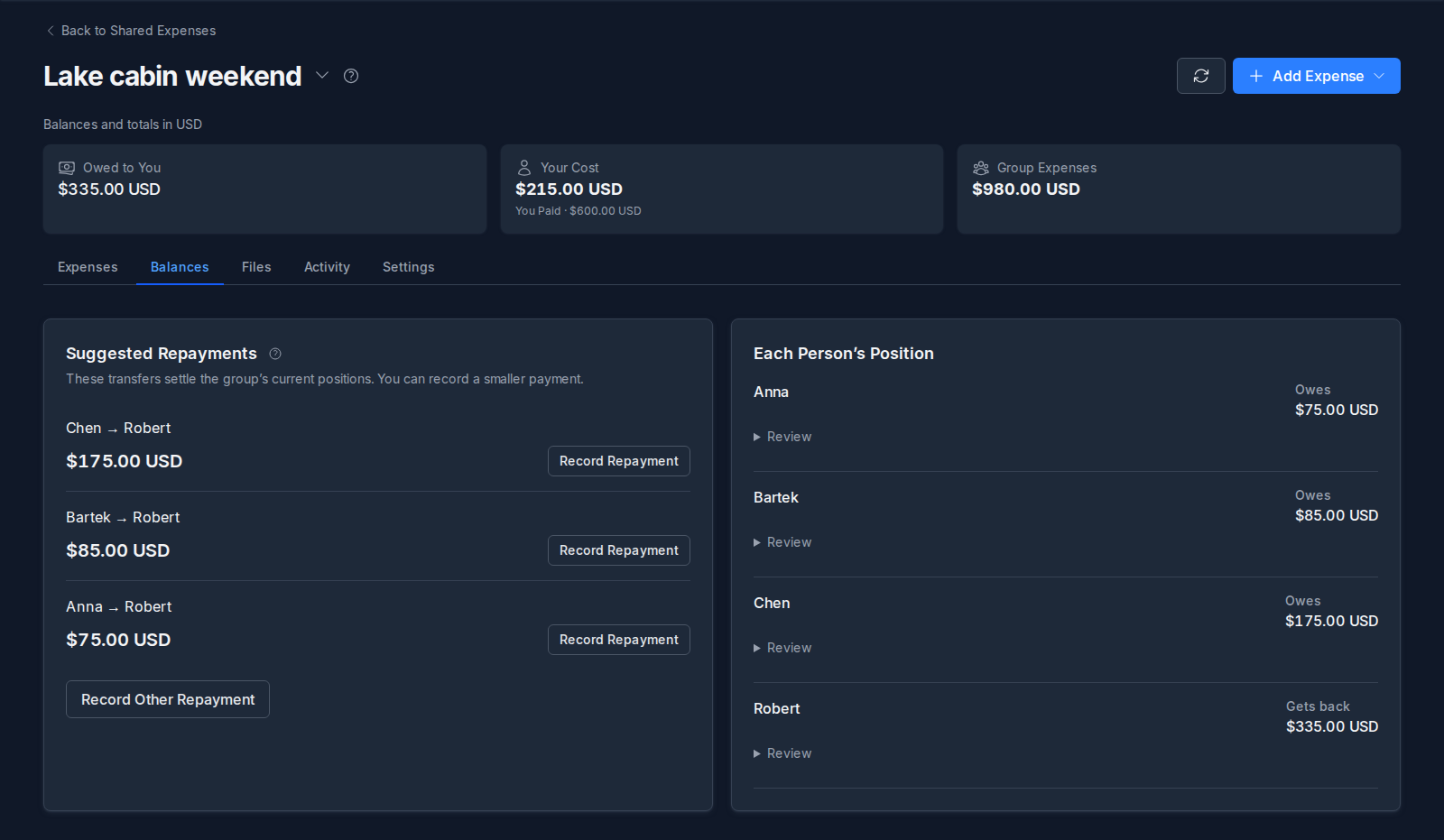
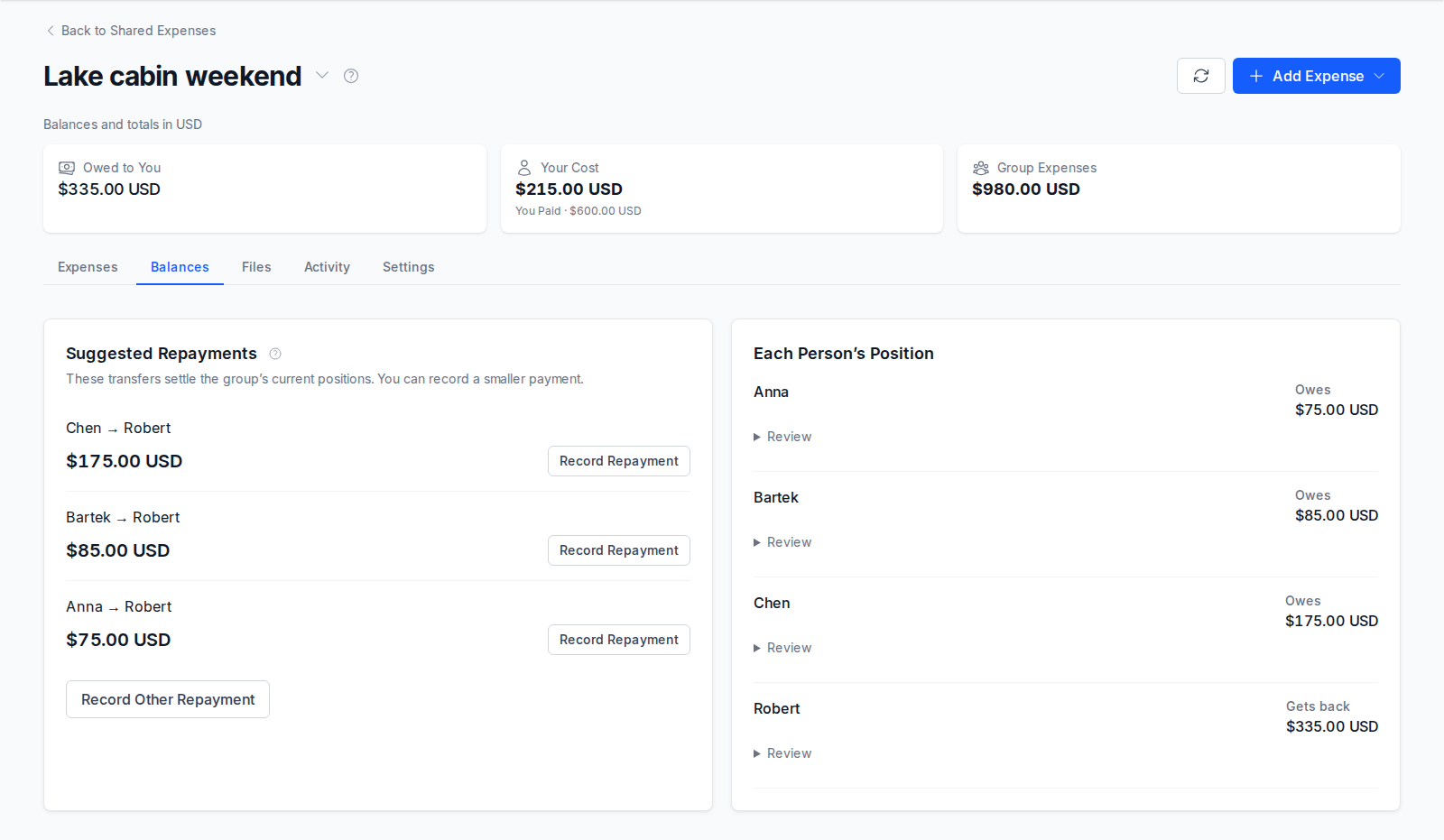
Each Person's Position is what each person is owed (positive) or owes (negative). Review under a name breaks it down into what they paid, their share, their income share, and the repayments they sent and received.
Suggested Repayments are the fewest transfers that would settle everyone. They use each person's net position across all purchases, so you may be asked to repay someone who did not pay for your particular expense; that is still correct. Settling once at the end of a trip is usually simpler than repaying after every purchase.
Recording a Repayment#
Monize does not send money. After the money has changed hands, choose Record Repayment beside the suggestion, or Record Other Repayment for any other payment between two people.
Screenshot pending: The Record Repayment form, filled in from a suggestion: the amount, who paid and who received itFrom, To and Amount are filled in from the suggestion; change the amount for a partial repayment. A repayment larger than the current suggestion is refused unless you turn on I understand this payment may exceed the current suggestion, which protects you from recording the same payment twice.
Reminders#
When someone who has joined the group with their own Monize account owes money, Remind under their suggestion, then Send Reminder, sends them a notification that opens the group's balances. You can remind the same person once every 24 hours, and the reminder respects their notification settings and whether they have muted the group.
Foreign Currencies#
A purchase can be in any currency. Its amount is converted to the settlement currency with:
- the Agreed Exchange Rate you entered under More Options (the rate stays with the expense), or
- the historical market rate for the purchase date, when you did not enter one.
When Monize has no rate for that currency pair and date, the expense is marked and the group shows a notice: the positions and suggestions wait until the rate is known, and Known position shows your position without that expense. Open the marked expense from the notice to enter the rate you agreed, or retry the lookup. See Currency Management for where market rates come from.
Files and Activity#
Files collects every document in the group: files uploaded straight to the group (tickets, bookings, a photo of the bill before anyone has entered it) and the attachments of individual expenses. Upload Files adds documents; each can be renamed and given a document type.
- Create Expense From This File opens a new expense with the file already attached, for a receipt uploaded first.
- Open Related Entry opens the expense a file belongs to.
- Share a Private Document copies a document from one of your own transactions into the group. The copy is separate: the original stays private.
Activity lists every change to the group: entries added, changed or cancelled, people added, invitations, access changes and documents, each with who made it and when.
Inviting People#
Anyone in a group can stay a name only. To let a person see the group and add expenses themselves, invite them from Settings. They need a Monize account on the same server.
Screenshot pending: The Settings tab: the people in the group with their access, linking to your own people, and the group's optionsChoose Invite beside the person.
Screenshot pending: The Invite dialog for Chen, with an optional email restriction- Optionally enter Restrict to email (optional) so that only that account can use the link.
- Choose Create Invitation, then Copy Link and send it to them however you like. Monize does not email it.
- They open the link, sign in, and choose Join Group. They join as the person already in the group, with that person's history.
A link is valid for 7 days, and creating another one for the same person replaces it. Remove Access under Invite at the bottom of Settings revokes a link nobody has used yet.
Joining shows the other person the group's expenses, people and documents. Your personal finances stay private: nobody in the group sees your accounts, categories, payees or bank records.
Access Levels#
| Access | Can |
|---|---|
| Owner | Everything: edit people, invite, change access, archive or delete the group |
| Can add expenses | Add, edit, refund and cancel entries, record repayments, upload files |
| Can view | Read the group, its balances and files |
Change a joined person's access with the list beside their name. Remove Access ends their access but leaves them and their history in the group.
Transferring Ownership#
To hand the group over, pick Ask To Take Ownership in the list beside a joined person. They see Accept Ownership in their Settings; once they accept, you choose Complete Handover. The new owner manages access and the group's settings, and you stay on as someone who can add expenses.
Managing People#
The owner can, from Settings:
- Edit a person's name.
- Add Person to an existing group.
- Deactivate a person who has not joined, for example someone who left the household. Their earlier expenses and balances stay; they are left out of new expenses. Reactivate brings them back.
Keeping the Same Person Across Groups#
The People tab on the main page is your own list of the people you share costs with; nobody else sees it. Save a person there, optionally linked to one of your payees, then use Link to a private person in a group's Settings to connect their appearance in that group. New Group then offers Add someone from your people, so you do not retype names. Groups stay separate: linking does not merge balances.
Archiving, Leaving and Deleting#
- Archive Group (owner) closes a finished trip. An archived group stays readable and its balances still count on the main page; Reopen Group before adding or editing entries.
- Leave Group (anyone but the owner) ends your access. Your recorded history stays in the group.
- Delete Empty Group (owner) is only offered while a group has no entries. A group with entries, documents or bookings is archived instead.
- Mute Group Notifications stops notifications from one group; Enable Group Notifications turns them back on.
Notifications#
When someone else changes a group you are in, or changes your access, Monize sends you a notification that opens the group. Choose how they reach you under Settings > Notifications, in the Shared expenses row (see Settings and Security).
Take the Guided Tour#
Open Settings > Guided tours and choose Start beside Shared expenses. The walkthrough points out navigation, group creation, expenses and balances. It does not create sample records for you.
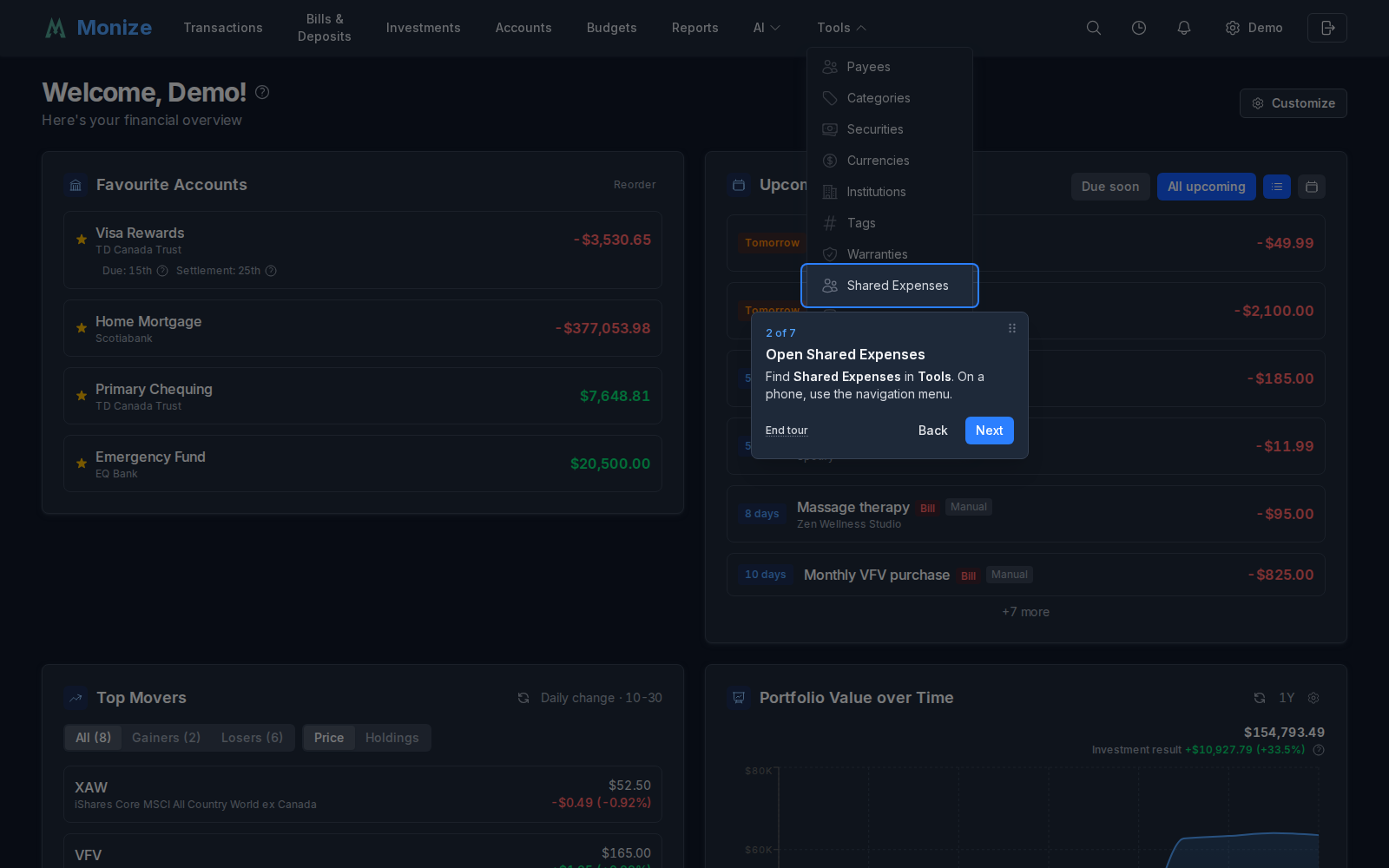
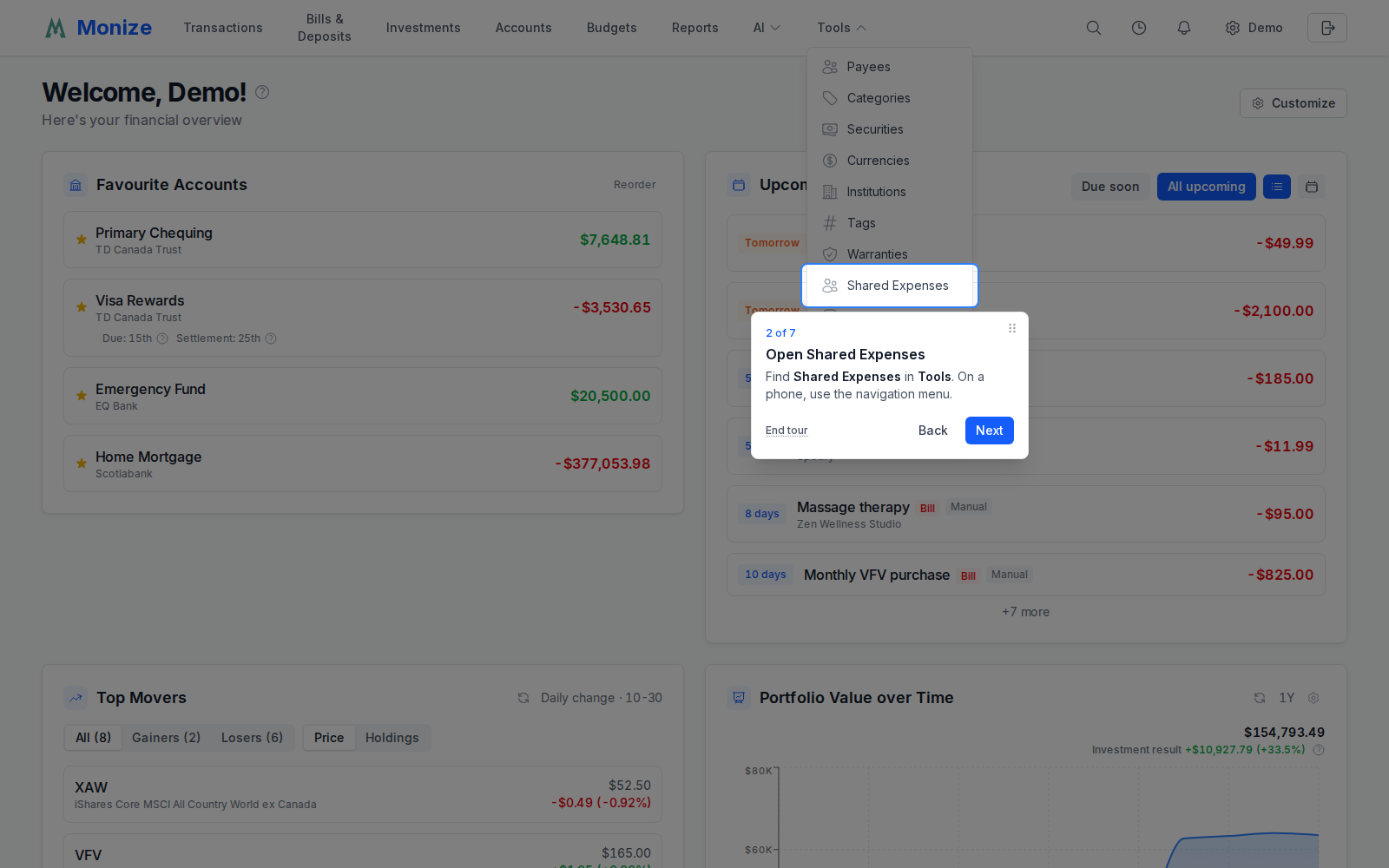
When asked to open a group, select one from the list. If you have none yet, choose Skip this step; the tour finishes without opening a group. You can create your group afterwards and use Retake in Guided tours to see the remaining steps. Use End tour or Escape to leave at any time.
Related#
- Currency Management -- exchange rates and where they come from
- Settings and Security -- the notification delivery matrix
- Shared Access -- sharing your own accounts with a delegate, which is a different feature