
Bills and Deposits
On this page
- Overview
- Creating a Scheduled Transaction
- Fields
- Split Scheduled Transactions
- Transfer Scheduling
- Frequency Options
- Bills List
- Auto-Posting
- How It Works
- When to Use Auto-Posting
- When NOT to Use Auto-Posting
- Overriding Individual Occurrences
- Modifying an Occurrence
- Skipping an Occurrence
- Cash Flow Forecast
- Loan Payment Scheduling
- Setting Up Loan Payments
- Schedule as Recurring
- Email Reminders
The Bills & Deposits feature lets you schedule recurring transactions so you never miss a payment or forget about regular income.
Overview#
Bills & Deposits manages your recurring financial obligations and expected income. It displays upcoming transactions, provides a cash flow forecast, and can automatically post transactions on their due dates.
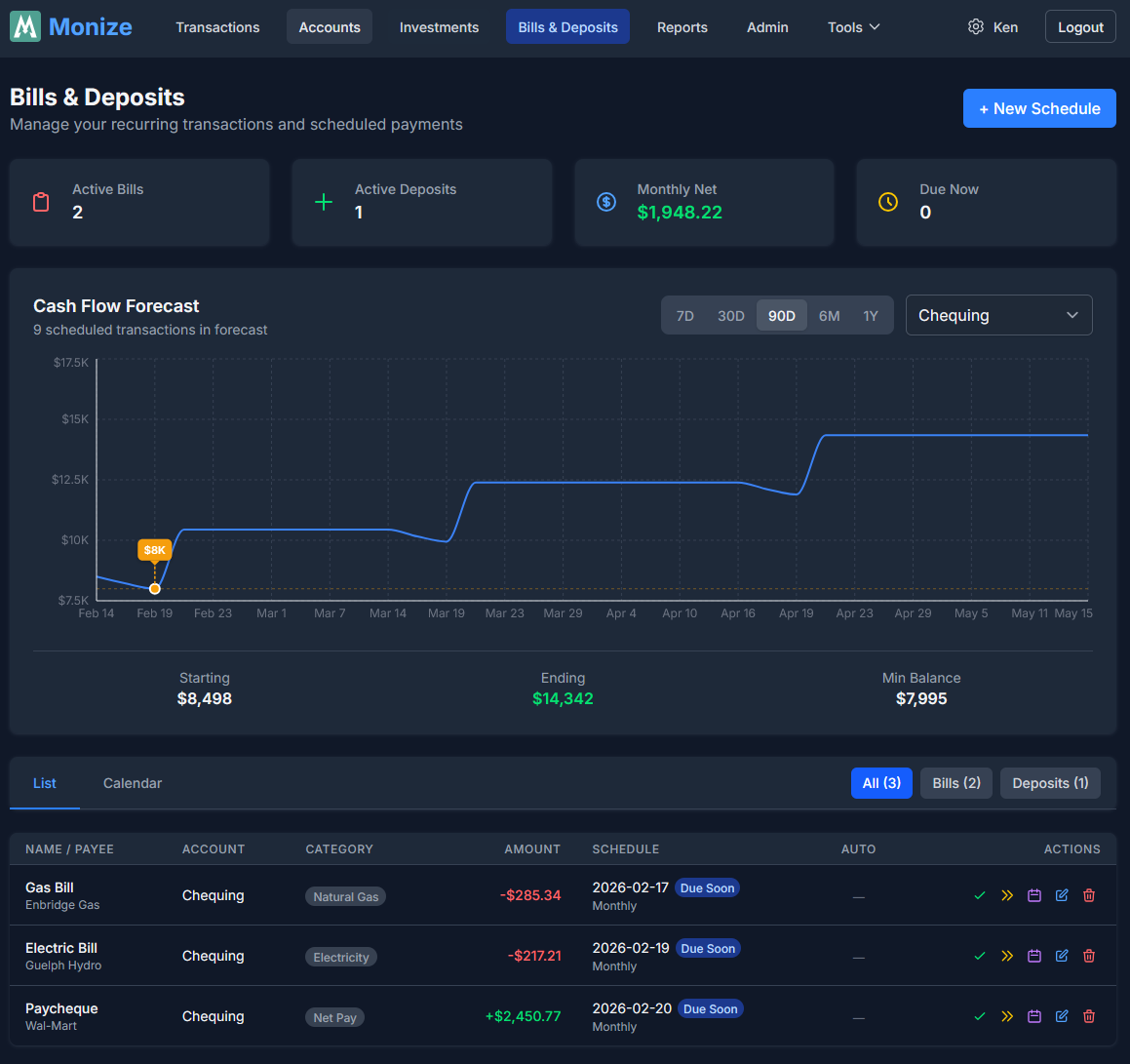
Creating a Scheduled Transaction#
- Navigate to Bills & Deposits from the top navigation bar
- Click Add Scheduled Transaction
- Fill in the form:
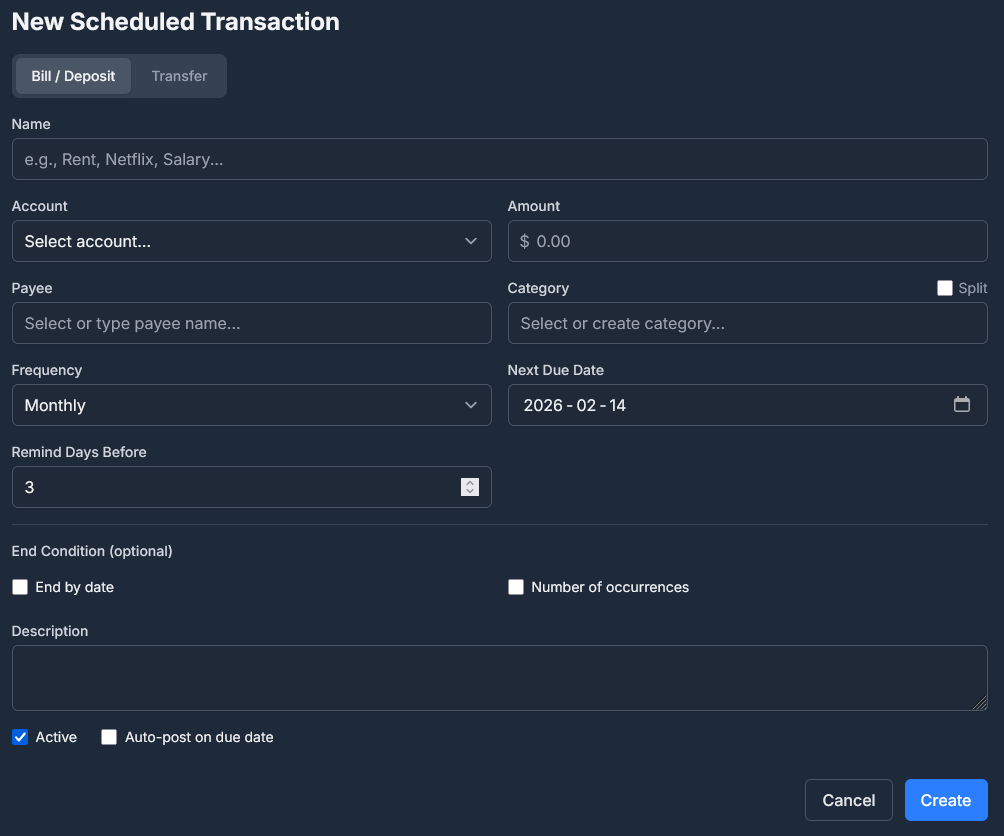
Fields#
| Field | Required | Description |
|---|---|---|
| Account | Yes | Which account this transaction uses |
| Payee | No | Who the transaction is with |
| Amount | Yes | Transaction amount |
| Category | No | Expense or income category |
| Frequency | Yes | How often the transaction recurs |
| Start Date | Yes | When the recurring schedule begins |
| End Date | No | When to stop recurring (optional) |
| Total Occurrences | No | Maximum number of occurrences (alternative to end date) |
| Tags | No | One or more tags applied when the transaction is posted |
| Reminder Days | No | How many days before due date to show a reminder |
| Auto-Post | No | Whether to automatically create the transaction on the due date |
| Memo | No | Additional notes |
Split Scheduled Transactions#
Like regular transactions, scheduled transactions support splits across multiple categories. Turn on the Split this transaction toggle in the form to add multiple category/amount rows.
Transfer Scheduling#
You can schedule recurring transfers between accounts (e.g., a monthly transfer from chequing to savings). Select a Transfer to account instead of a category. You may optionally also assign a category: the transfer is still not counted as income or expense, but it will appear in the monthly category breakdown (useful for tracking recurring investment contributions).
Frequency Options#
| Frequency | Description |
|---|---|
| Once | A single future transaction (useful for reminders) |
| Daily | Every day |
| Weekly | Once per week on a specific day |
| Bi-Weekly | Every two weeks |
| Every 4 Weeks | Every four weeks (useful for pay cycles that do not align to calendar months) |
| Monthly | Once per month on a specific date |
| Quarterly | Every three months |
| Yearly | Once per year |
Bills List#
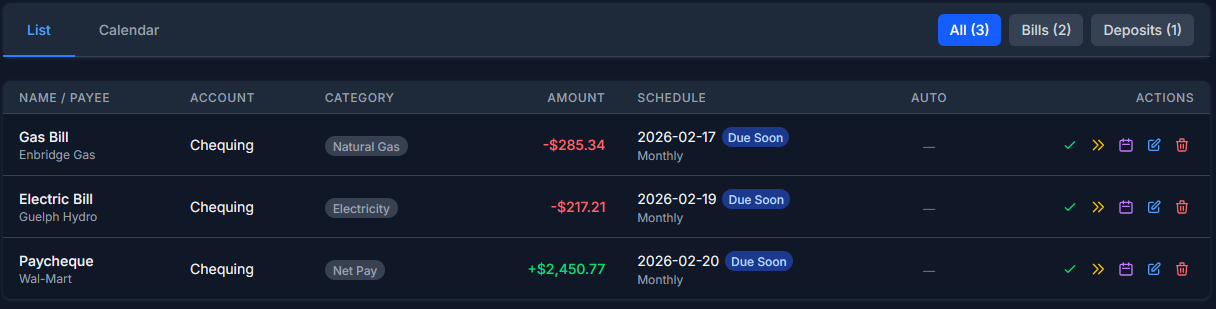
The Bills & Deposits page shows all scheduled transactions with:
| Column | Description |
|---|---|
| Description/Payee | Who or what the transaction is for |
| Account | The account involved |
| Amount | The scheduled amount |
| Frequency | How often it recurs |
| Next Due Date | When the next occurrence is due |
| Status | Active, paused, or completed |
Auto-Posting#
When auto-posting is enabled for a scheduled transaction, Monize automatically creates the transaction on its due date without any manual intervention.
How It Works#
- Each day, the system checks for scheduled transactions that are due
- If auto-post is enabled, the transaction is created in the designated account
- The next occurrence date is calculated based on the frequency
- If the total occurrences limit is reached, the scheduled transaction is marked as completed
When to Use Auto-Posting#
- Fixed-amount bills (e.g., rent, subscription services) -- The amount is the same each time
- Regular transfers (e.g., monthly savings contribution) -- Predictable, consistent amounts
When NOT to Use Auto-Posting#
- Variable-amount bills (e.g., utilities, credit card payments) -- Use reminders instead and enter the actual amount manually
Overriding Individual Occurrences#
You can modify or skip individual occurrences of a scheduled transaction without changing the overall schedule.
Modifying an Occurrence#
- In the bills list, find the scheduled transaction
- Click on the specific upcoming occurrence
- Change the date, amount, or category for this occurrence only
- To split just this occurrence across multiple categories, turn on the Split this occurrence toggle and add category/amount rows (independent of whether the underlying schedule is split)
- Click Save Override
The override only affects that single occurrence. All other future occurrences follow the original schedule.
Skipping an Occurrence#
If a recurring bill does not apply for a particular period (e.g., a holiday causes a payment to be skipped):
- Select the occurrence
- Choose Skip this occurrence
- The next occurrence continues as normal
Cash Flow Forecast#
The bills system provides a cash flow forecast showing your expected account balances based on scheduled transactions.
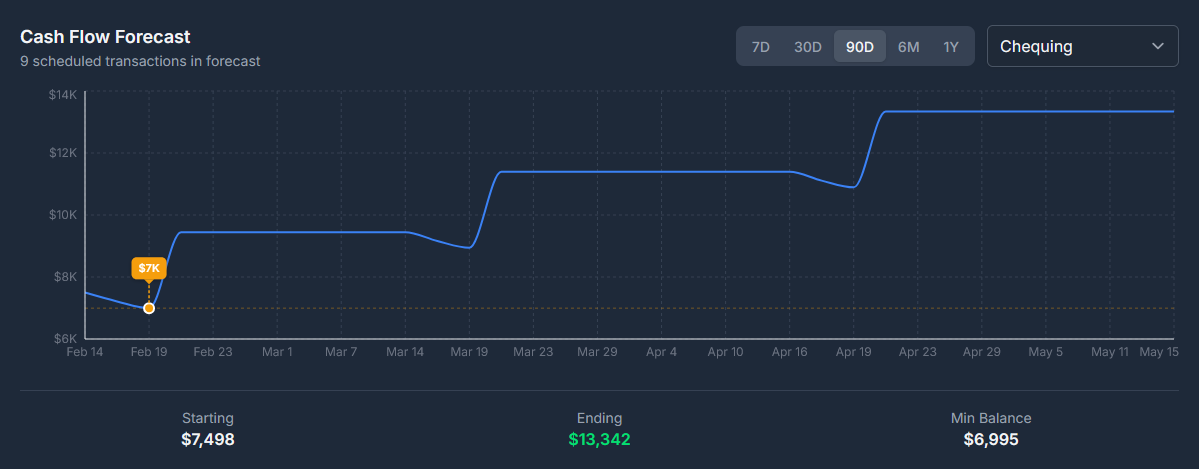
This helps you:
- Anticipate when account balances will be low
- Plan for upcoming large expenses
- Ensure sufficient funds for automatic payments
Loan Payment Scheduling#
For loan and mortgage accounts, scheduled transactions can be set up to track regular payments.
Setting Up Loan Payments#
- Create a scheduled transaction with the loan payment amount
- Set the category to the loan account (this creates a transfer to the loan)
- Set the appropriate frequency (typically monthly)
This ensures each payment is recorded as a transfer to the loan account, properly reducing the outstanding balance.
Note: When importing from Microsoft Money, loan payment categories are automatically detected and mapped to the corresponding loan accounts. See Importing from Microsoft Money for details.
Schedule as Recurring#
You can create a scheduled transaction from any existing transaction without re-entering its details.
- On the Transactions page, find the transaction you want to schedule
- Click the Copy dropdown on the transaction row and select Schedule as Recurring
- The scheduled transaction form opens pre-filled with the transaction's account, payee, amount, category, and tags
- Set the frequency, start date, and other scheduling options
- Click Save
The original transaction is not modified -- a new scheduled transaction is created based on its details.
Email Reminders#
When email notifications are enabled in Settings, Monize sends reminder emails before scheduled transactions come due. Reminder emails are colour-coded to help you quickly distinguish between expenses and income at a glance.