
Getting Started
On this page
- Prerequisites
- Installation
- Using Docker Compose (Recommended)
- Using Kubernetes (Helm)
- Updating Docker Images
- First-Time Setup
- Registration
- Setting Your Home Currency
- Creating Your First Account
- Navigating the Application
- Primary Navigation
- Tools Menu
- User Menu
- Installing as a Progressive Web App
- What You Get
- Before You Install
- Installing on Desktop (Chrome, Edge, Brave)
- Installing on Android (Chrome, Edge, Samsung Internet)
- Installing on iPhone or iPad (Safari)
- Installing on Firefox for Android
- Uninstalling
- Troubleshooting
- Next Steps
This guide walks you through setting up Monize and getting your financial data organized.
Prerequisites#
Before installing Monize, ensure you have:
- Docker and Docker Compose installed on your server
- A minimum of 1 GB RAM available
- A modern web browser (Chrome, Firefox, Safari, or Edge)
Installation#
Using Docker Compose (Recommended)#
- Clone the repository:
git clone https://github.com/your-repo/monize.git
cd monize
- Create your
.envfile by copying the bundled example:
cp .env.example .env
The repository ships a .env.example that documents every setting Monize
supports, grouped into sections and with the defaults and explanatory comments
inline. Anything you do not need can be left commented out -- you do not have to
hunt for settings elsewhere. The sections are:
| Section | What it covers |
|---|---|
| Database | PostgreSQL connection, TLS, and the optional Row-Level Security roles |
| Application | JWT_SECRET, encryption keys, and general app settings |
| URLs & Ports | Host port mappings and the public frontend URL |
| Authentication | Local login and registration toggles |
| OIDC / OpenID Connect | Single sign-on provider configuration (optional) |
| Email Notifications | SMTP server settings (optional) |
| Demo Mode | Demo restrictions and the daily reset (optional) |
| MCP / OAuth Debug Logging | Extra diagnostics for MCP and OAuth (optional) |
| AI Integration | Anthropic, OpenAI, and Ollama settings (optional) |
| Email receipts | Mailbox polling limits, the private-host allowlist, and Google / Microsoft 365 sign-in (optional; see Email Receipts) |
| Attachments | Transaction attachment storage: database, local filesystem, or S3 |
| Backup | Backup directory and scheduling |
| Quote Providers | Investment price/quote sources |
| Update Checks | New-version notifications |
| Frontend | Local development only |
At minimum, set JWT_SECRET, ENCRYPTION_KEY and a database password before starting:
# Required
JWT_SECRET=your-secret-key-minimum-32-characters-long
ENCRYPTION_KEY=your-encryption-key-minimum-32-characters

# Database (defaults shown)
POSTGRES_USER=monize
POSTGRES_PASSWORD=your-database-password
POSTGRES_DB=monize
Important: Both must be at least 32 characters long. The application refuses to start without
JWT_SECRET;ENCRYPTION_KEYis not enforced yet, but the server warns about it on every start and a future release will require it. Generate them withopenssl rand -base64 32andopenssl rand -hex 32.
Set
ENCRYPTION_KEY, keep it safe, and never change it. It encrypts what Monize stores in the database: AI provider API keys, Google Places API keys, emergency-access credentials, the instance's browser-push key pair, and the copy of each user's password that automatic backups are encrypted with. Without it, your automatic backups are written unencrypted, no API key or emergency-access contact can be saved at all, and browser push cannot be configured. Changing it later does not re-encrypt anything -- it makes what is already stored unreadable, and automatic backups stop until every user signs in again. Store it wherever you keep your other deployment secrets, and back it up. (Backup and Restore has the full picture of what depends on it.)Upgrading from a version before this setting existed? It was called
AI_ENCRYPTION_KEY. The old name is still accepted, so an existing deployment keeps working untouched -- but if you never set it, your automatic backups were, and still are, being written unencrypted. The server now says so in its startup log on every boot.
- Start the application:
docker compose up -d
- Access Monize at
http://localhost:3001
Using Kubernetes (Helm)#
Helm charts are provided in the helm/ directory for Kubernetes deployments. Refer to the Helm README for detailed configuration options.
Updating Docker Images#
Monize publishes prebuilt images to the GitHub Container Registry
(ghcr.io/kenlasko/monize-backend and ghcr.io/kenlasko/monize-frontend). To
update, pull the new images and recreate the containers:
docker compose -f docker-compose.prod.yml pull
docker compose -f docker-compose.prod.yml up -d
Use whichever compose file you started Monize with. up -d only recreates the
services whose image changed, and your data stays in the postgres volume.
- Database migrations run automatically. The backend applies any pending migrations each time it starts, so there is no separate upgrade step.
- Back up first. Take a backup before updating (see Backup and Restore), especially across several versions.
- Pinned tags. If you pin an image tag instead of
latest, edit the tag in your compose file before runningpull. - Clean up. Run
docker image pruneto remove the old, unused images.
First-Time Setup#
Registration#
When you first access Monize, you will be presented with the login page.
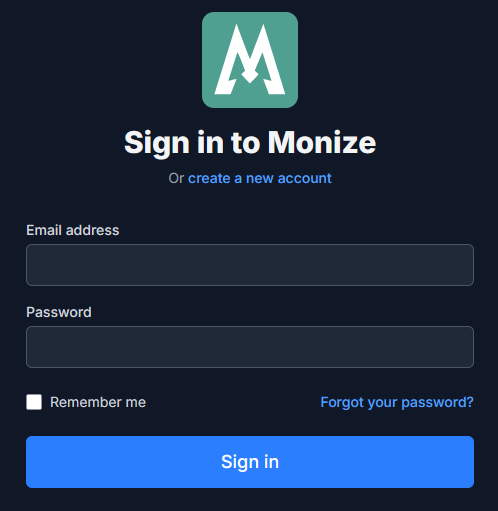
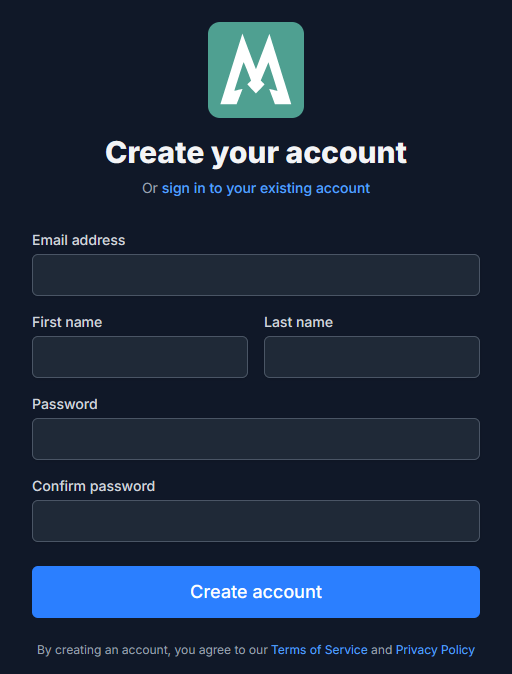
- Click Register to create your account
- Enter your first name, email address, and password
- Click Register to complete account creation
- You will be redirected to the dashboard
Setting Your Home Currency#
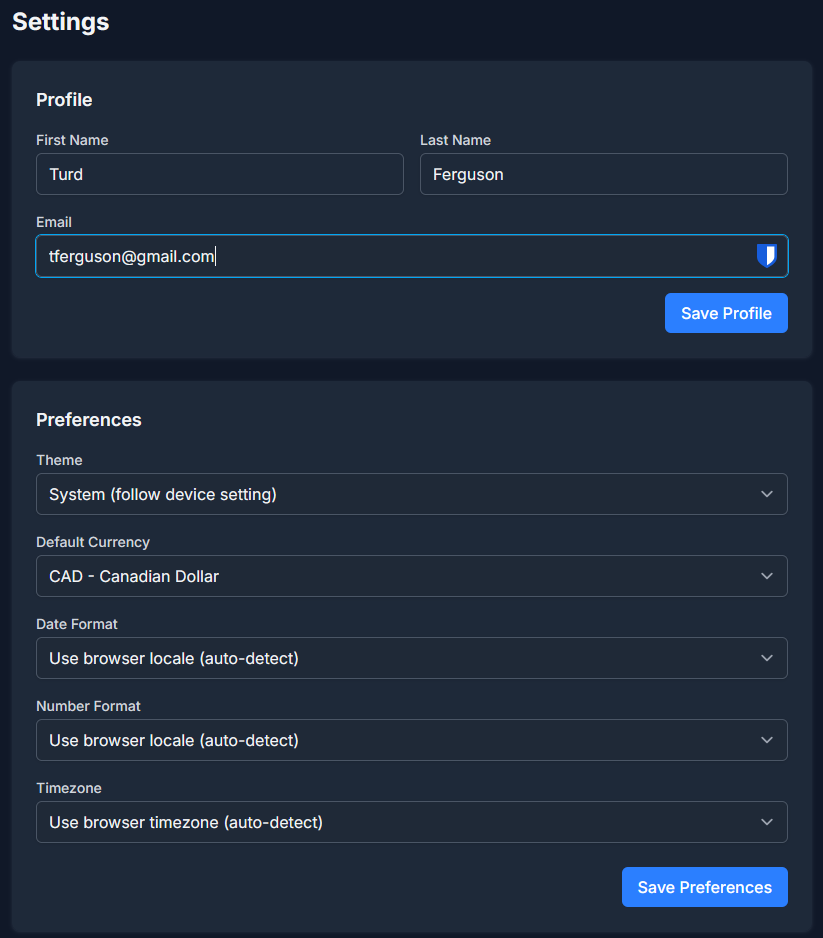
After registration, navigate to Settings (gear icon in the top-right corner) to configure your home currency. This is the primary currency used for reporting and net worth calculations.
Creating Your First Account#
- Navigate to Accounts from the top navigation bar
- Click Create Account
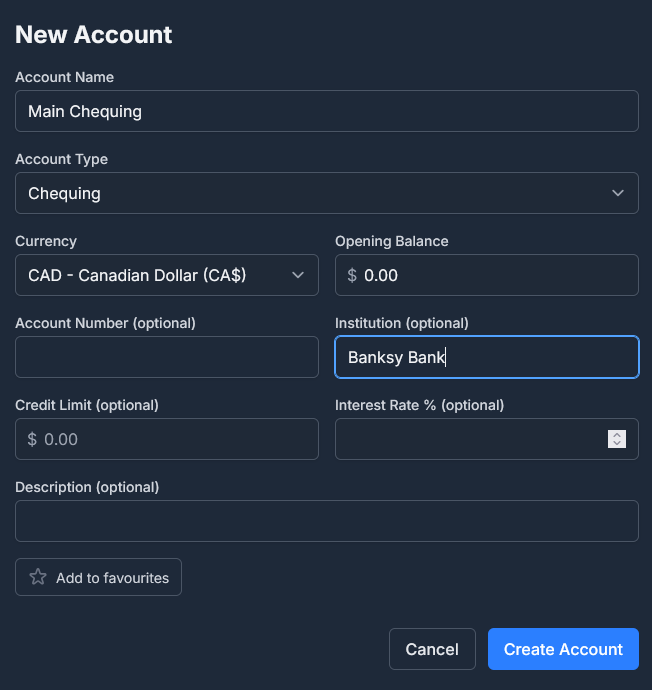
- Fill in the account details:
- Account Name -- A descriptive name (e.g., "Main Chequing")
- Account Type -- Select from the available types (see Accounts for details)
- Currency -- The currency this account operates in
- Opening Balance -- The starting balance as of a specific date
- Click Save
Navigating the Application#
The main navigation bar provides access to all major features:

Primary Navigation#
| Menu Item | Description |
|---|---|
| Transactions | View, search, and manage all transactions |
| Accounts | Manage your accounts and view balances |
| Investments | Track your investment portfolio |
| Bills & Deposits | Manage scheduled and recurring transactions |
| Reports | Access built-in and custom reports |
Tools Menu#
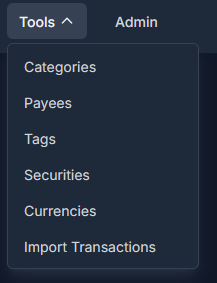
Click the Tools dropdown to access additional features:
| Tool | Description |
|---|---|
| Categories | Manage income and expense categories |
| Payees | Manage payee records |
| Tags | Manage transaction tags for flexible labelling |
| Securities | Manage investment securities |
| Currencies | View and manage currencies and exchange rates |
| Import Transactions | Import CSV, OFX/QFX, and QIF files from banks and financial software |
User Menu#
The top-right corner shows your name and provides access to:
- Settings -- Configure preferences, two-factor authentication, and trusted devices
- Logout -- Sign out of the application
Installing as a Progressive Web App#
Monize is a Progressive Web App (PWA), which means it can be installed directly from your browser and launched like a native application -- no app store required.
What You Get#
- Standalone window -- Monize opens in its own window without browser tabs, address bar, or other browser chrome, giving it a native app feel
- Home screen / app launcher icon -- Launch Monize with a single tap or click, just like any other installed app
- Faster startup -- Static assets (JavaScript, stylesheets, fonts, images) are cached locally by the service worker, so the app shell loads quickly on subsequent visits
- Works on any modern device -- Desktop (Windows, macOS, Linux) and mobile (Android, iOS / iPadOS)
Note: The PWA caches the app itself, but your financial data still requires a network connection to your Monize server. The PWA does not provide fully offline access to transactions, accounts, or reports.
Before You Install#
- Monize must be accessed over HTTPS (or over
http://localhostfor local development). Browsers will not offer installation on plain HTTP URLs. - Use a modern browser that supports PWAs (Chrome, Edge, Safari, Firefox, Brave, Opera, or Samsung Internet).
Installing on Desktop (Chrome, Edge, Brave)#
- Open Monize in your browser and sign in
- Look for the install icon in the address bar (a small monitor or computer icon, often on the right-hand side)
- Click the icon, then click Install
- Monize will open in its own window and an icon will be added to your applications list, Start menu, or Dock
Alternatively, open the browser menu (three dots) and choose Install Monize... or Apps > Install this site as an app.
Installing on Android (Chrome, Edge, Samsung Internet)#
- Open Monize in your mobile browser and sign in
- Tap the menu button (three dots in the top-right corner)
- Tap Install app or Add to Home screen
- Confirm by tapping Install
- The Monize icon will appear on your home screen and app drawer
Installing on iPhone or iPad (Safari)#
Safari does not show an automatic install prompt, so you need to add Monize from the Share menu:
- Open Monize in Safari (other iOS browsers do not support PWA installation)
- Tap the Share button (the square with an upward arrow) at the bottom of the screen
- Scroll down and tap Add to Home Screen
- Edit the name if desired, then tap Add
- The Monize icon will appear on your home screen
Installing on Firefox for Android#
- Open Monize in Firefox and sign in
- Tap the menu button (three dots)
- Tap Install or Add to Home screen
- Confirm the installation
Uninstalling#
To remove the installed PWA:
- Desktop -- Open the installed Monize window, click the three-dot menu inside it, and choose Uninstall Monize.... On Windows and macOS you can also uninstall from the operating system's usual apps list.
- Android -- Long-press the Monize icon and tap Uninstall (or drag it to the uninstall zone)
- iOS / iPadOS -- Long-press the Monize icon on the home screen and tap Remove App > Delete App
Troubleshooting#
- I don't see an install option. Confirm you are accessing Monize over HTTPS, that you are using a supported browser, and that the site is fully loaded. Some browsers require a short interaction with the page before offering installation.
- The app shows stale content after an update. Close and reopen the installed window to let the service worker pick up the new version. On desktop you can also right-click the app icon and reload.
- I want to reinstall after uninstalling. Clear the site's cache and service worker data in your browser, then revisit Monize to see the install prompt again.
Next Steps#
Once you have Monize installed and your first account created, here are recommended next steps:
- Migrating from Microsoft Money? Follow the detailed Importing from Microsoft Money guide
- Migrating from Quicken? Follow the detailed Importing from Quicken guide
- Set up your categories -- Customize the default categories in Categories and Payees
- Add your accounts -- Create all your financial accounts in Accounts
- Schedule recurring transactions -- Set up your bills and regular deposits in Bills and Deposits
- Explore reports -- Check out the Reports section to see what insights are available