
AI
On this page
- Setting Up AI
- Central AI Provider
- Adding a Provider
- Supported Providers
- Testing Your Connection
- AI Assistant
- Asking Questions
- Suggested Queries
- Charts and Visualizations
- Entity Links
- Making Changes
- Attachments
- Moving the Chat Panel
- Financial Insights
- Insight Types
- Dismissing Insights
- Forecast
- MCP Server
- What is MCP?
- Choosing an Authentication Method
- Option 1: OAuth (Claude Desktop "Add Connector")
- Option 2: Personal Access Token + Local Bridge
- Available MCP Tools
- MCP Resources
- MCP Prompts
- MCP Relay
- What is MCP Relay?
- How It Works
- Connecting Your Assistant
- Using the Chat
- Connection Indicator
- Limitations
- Usage Tracking
- Privacy and Security
Monize includes an AI assistant that can answer natural language questions about your finances, generate insights about your spending habits, and integrate with external AI clients via the Model Context Protocol (MCP). You bring your own API key -- Monize supports Anthropic Claude, OpenAI, Ollama (local), and any OpenAI-compatible provider.
Setting Up AI#
Before using AI features, you need at least one configured AI provider -- either a central provider set up by the administrator, or a personal provider you configure yourself.
Central AI Provider#
An administrator can configure a shared AI provider at the server level so that all users have access to AI features without needing their own API keys. This is done by setting environment variables on the server.
| Variable | Description |
|---|---|
AI_DEFAULT_PROVIDER | Provider type: anthropic, openai, ollama, or openai-compatible |
AI_DEFAULT_API_KEY | API key for the provider |
AI_DEFAULT_MODEL | Optional -- specific model to use (falls back to the provider's default) |
AI_DEFAULT_BASE_URL | Optional -- custom base URL for OpenAI-compatible or Ollama providers |
For example, in your .env file:
AI_DEFAULT_PROVIDER=anthropic
AI_DEFAULT_API_KEY=sk-ant-...
When a central provider is configured, all users can use the AI assistant and financial insights immediately. Users who configure their own provider will use their personal provider instead of the central one.
Adding a Provider#
- Navigate to Settings > AI
- Click Add Provider
- Select a provider type
- Enter your API key
- Optionally choose a specific model (or use the default)
- Click Save
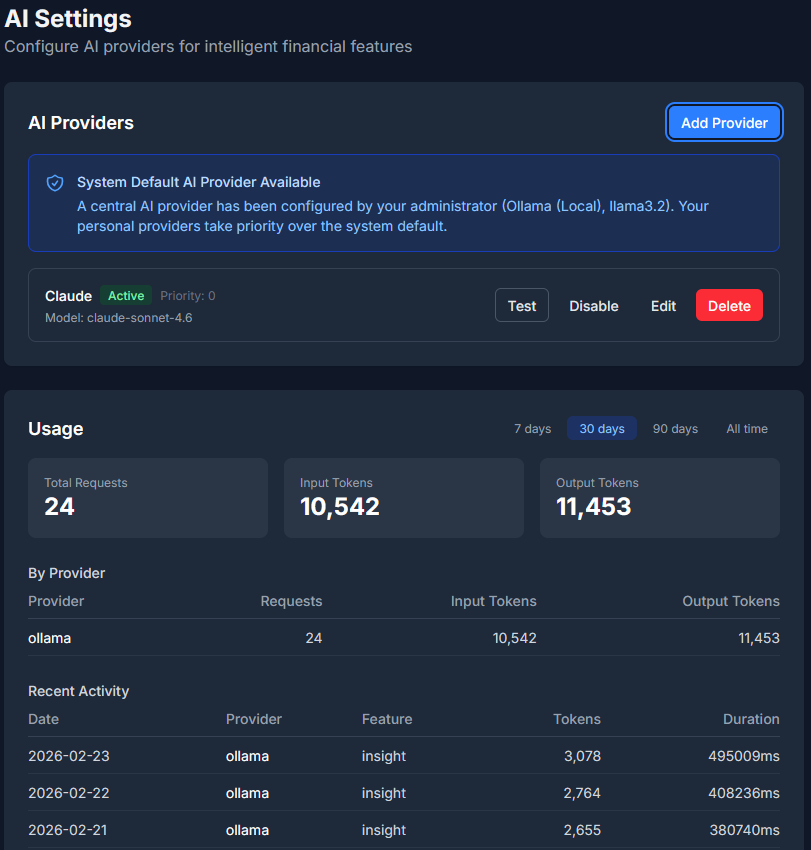
You can configure multiple providers and assign priority levels. Monize will fall back to the next provider if the primary one is unavailable.
Supported Providers#
| Provider | Default Model | Description |
|---|---|---|
| Anthropic | claude-sonnet-4-20250514 | Claude models via the Anthropic API |
| OpenAI | gpt-4o | GPT models via the OpenAI API |
| Ollama | (user-configured) | Local, self-hosted models -- your data never leaves your machine. Supports private and local network URLs (e.g., http://localhost:11434 or http://192.168.1.100:11434) |
| OpenAI-Compatible | (user-configured) | Any API that follows the OpenAI format (Groq, Together, LM Studio, etc.) |
For OpenAI-compatible providers, you can set a custom Base URL to point at your preferred endpoint.
Testing Your Connection#
After adding a provider, click Test Connection to verify that your API key and configuration are working. The test sends a minimal request to the provider and reports success or failure.
AI Assistant#
The AI Assistant lets you ask questions about your finances in plain language. It uses tool calling to query your actual financial data and return accurate, sourced answers.
Asking Questions#
- Navigate to AI - AI Assistant
- Type a question in the chat input
- The assistant streams its response in real time
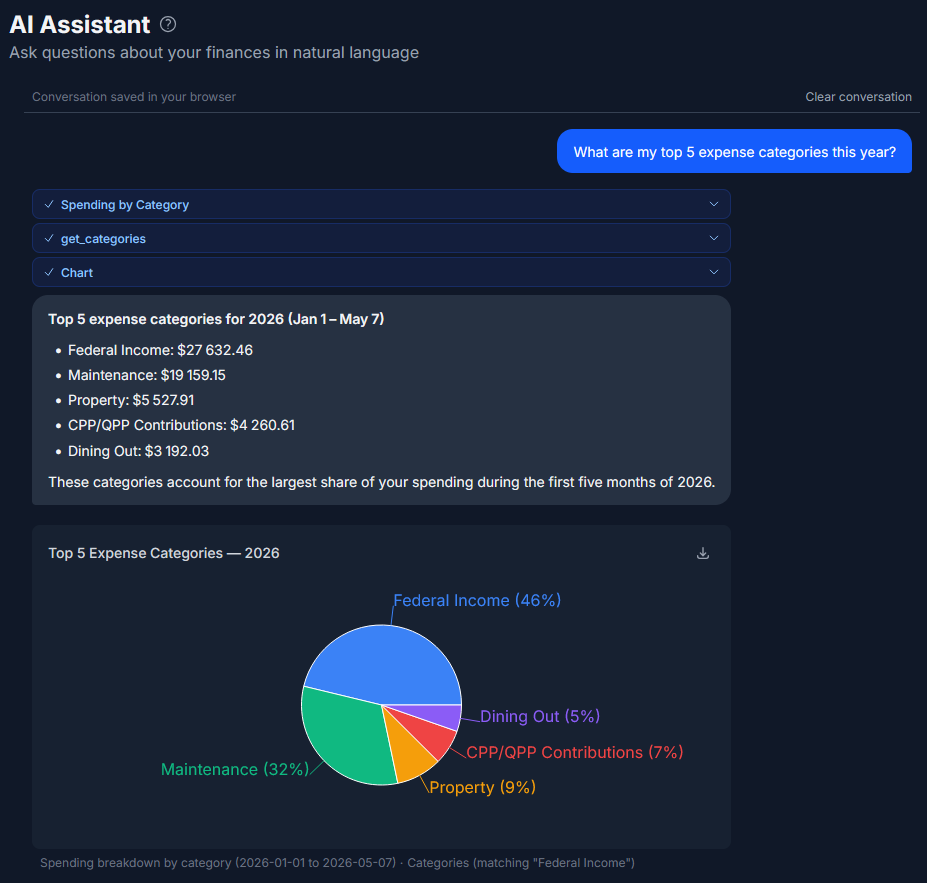
Example questions:
- "How much did I spend on groceries last month?"
- "What are my top 5 expense categories this year?"
- "Compare my spending this month vs last month"
- "What's my net worth trend over the past 6 months?"
- "How much can I still spend this month within my budget?"
- "What's my income breakdown by category?"
The assistant has access to the following financial tools:
| Tool | Description |
|---|---|
| Query Transactions | Search and aggregate transaction data with filters |
| Get Account Balances | Retrieve account balances and net worth |
| Get Spending by Category | Break down spending by category for a date range |
| Get Income Summary | Income breakdown by source, category, or month |
| Get Net Worth History | Historical net worth trends over time |
| Get Budget Status | Current budget vs actual spending |
| Compare Periods | Side-by-side comparison of two time periods |
Suggested Queries#
The AI page displays suggested query buttons to help you get started quickly. These are common financial questions tailored to typical use cases.
Charts and Visualizations#
When the assistant returns data that lends itself to visualization, an inline chart is rendered directly in the chat. For example, a spending-by-category query may display a bar or pie chart alongside the text response.
Entity Links#
When the assistant mentions one of your accounts, categories, payees, or transactions by name, that name is rendered as a clickable in-app link. Clicking it takes you straight to that item -- or to a transaction list filtered to it -- so you can jump from an answer to the underlying records in one click. The same links appear on insight cards.
Making Changes#
Beyond answering questions, the assistant can make changes on your behalf -- creating, updating, and deleting transactions, payees, securities, and investment transactions.
Nothing is saved until you approve it. Each proposed change is presented as an on-screen confirmation card that you accept or reject:
- 1-5 items -- each item gets its own confirmation card.
- 6 or more items -- the batch is grouped into a single bulk confirmation card that you approve or reject as a whole.
Attachments#
You can attach files to a chat message using the composer's attachment button. Supported types are images (PNG, JPEG, GIF, WebP), PDF, CSV, and plain text -- up to 5 files per message, each up to 5 MB. PDFs are text-extracted so the assistant can read their contents.
Moving the Chat Panel#
On desktop, the floating chat panel can be dragged by its header to reposition it anywhere on screen. Its position is remembered per device.
Financial Insights#
Monize's AI automatically analyzes your financial data daily and generates actionable insights. Insights appear on the AI page and highlight patterns, anomalies, and opportunities you might otherwise miss.
Insight Types#
| Type | Description | Severity |
|---|---|---|
| Anomaly | Unusual spending -- significantly higher than your historical average for a category | Warning / Alert |
| Trend | A sustained increase or decrease in spending over 3+ months | Info / Warning |
| Subscription | A recurring charge that has changed in price or a consolidation opportunity | Info |
| Budget Pace | You're on track to exceed your budget for the current period | Warning |
| Seasonal | Seasonal spending patterns detected (e.g., holiday months, annual renewals) | Info |
| New Recurring | A newly detected recurring charge that wasn't previously flagged | Info |
Insights are regenerated daily. A maximum of 50 insights are retained per user, and each insight expires after 7 days.
Dismissing Insights#
Click the dismiss button on any insight card to remove it. Dismissed insights will not reappear.
Forecast#
Monize can project your finances forward using AI. The forecast analyzes your historical income and spending -- at least 2 months of transaction history is required -- and produces a month-by-month projection for the months ahead.
Like insights, forecast prose is written in your chosen language. In MCP Relay mode the forecast is generated by your connected agent rather than a server-side provider, so your agent must be online to generate one.
MCP Server#
What is MCP?#
The Model Context Protocol (MCP) allows external AI clients -- such as Claude Desktop -- to connect to Monize and access your financial data directly. This means you can ask Claude Desktop questions about your finances without opening Monize in a browser.
Choosing an Authentication Method#
Monize supports two ways to authenticate an MCP client. Pick based on whether your Monize instance is reachable from the public internet.
| Method | Best for | Requires public HTTPS URL? | Setup effort |
|---|---|---|---|
| OAuth ("Add Connector") | Public deployments | Yes | Click-through |
| Personal Access Token + local bridge | Self-hosted / LAN-only / VPN-only | No | Manual config file |
Option 1: OAuth (Claude Desktop "Add Connector")#
This is the easiest method when your Monize instance is publicly reachable. Tokens are issued through a browser-based consent flow and managed automatically by Claude Desktop -- you never copy or paste a token, and revocation is per-app rather than per-token.
What you'll need:
- Monize running behind a public HTTPS URL (e.g.,
https://monize.example.com). - The
PUBLIC_APP_URLenvironment variable on the backend set to that same URL. The OAuth issuer, MCP resource URL, and consent redirects are all derived fromPUBLIC_APP_URL, so it must match exactly what Claude Desktop will see in the browser. - Claude Desktop signed in to your Monize account in a browser tab on the same machine. The consent flow piggybacks on your existing web session.
Steps:
- In Claude Desktop, open Settings > Connectors.
- Click Add custom connector (or Add Connector).
- Enter your Monize URL:
https://monize.example.com(no trailing path -- the connector resolves the MCP and OAuth metadata endpoints automatically via/.well-known/oauth-protected-resourceand/.well-known/oauth-authorization-server). - Claude Desktop opens your browser to Monize's consent screen.
- Review the requested scopes (
monize:read,monize:write) and click Allow. - The browser redirects back to Claude Desktop, which stores the access + refresh tokens internally.
After consent, Claude Desktop automatically refreshes tokens (default access-token lifetime is 1 hour, refresh-token lifetime is 14 days). You can revoke access from either side:
- From Claude Desktop: remove the connector in Settings > Connectors.
- From Monize: an admin can deactivate the user account or trigger a password reset -- both flows now revoke every active OIDC token, refresh token, and authorization grant for that user immediately. Individual users can also use the Settings > AI > MCP / Connected Apps page (when available) to revoke per-client.
Security notes:
- All grants are PKCE-protected (S256). The OAuth flow rejects the legacy implicit and password grant types entirely.
- Tokens are audience-bound to your Monize MCP URL. A token issued for
https://monize.example.com/api/v1/mcpcannot be replayed against a different Monize instance. - Deactivating a user in Settings > Admin > Users immediately invalidates every existing OAuth access token, refresh token, and grant for that user, in addition to refresh tokens and PATs.
Option 2: Personal Access Token + Local Bridge#
Use this method when your Monize instance is private (LAN-only, behind a VPN, accessed via Tailscale/Cloudflare Tunnel, etc.) and Claude Desktop's connector flow can't reach it.
This method works because Claude Desktop spawns a local subprocess (the "bridge") on your machine, and that subprocess connects to your private Monize URL using whatever network access your machine has. Nothing has to be publicly exposed.
Step 1: Generate a Personal Access Token
- In Monize, navigate to Settings > AI.
- Scroll to the MCP / Personal Access Tokens section.
- Click Generate Token.
- Give the token a name (e.g.,
Claude Desktop) and select scopes (read,write). - Copy the token -- it begins with
pat_and is shown only once.
Tokens are stored as SHA-256 hashes in the database. You can revoke a token at any time from the settings page.
Step 2: Configure Claude Desktop
Edit your claude_desktop_config.json file. The location depends on your operating system:
| OS | Path |
|---|---|
| macOS | ~/Library/Application Support/Claude/claude_desktop_config.json |
| Windows | %APPDATA%\Claude\claude_desktop_config.json |
| Linux | ~/.config/Claude/claude_desktop_config.json |
Add the following entry under mcpServers. The mcp-remote package (from @modelcontextprotocol) acts as a stdio-to-HTTP bridge, accepting your PAT as an Authorization: Bearer header:
{
  "mcpServers": {
    "monize": {
      "command": "npx",
      "args": [
        "-y",
        "mcp-remote",
        "https://monize.lan/api/v1/mcp",
        "--header",
        "Authorization: Bearer pat_your_token_here"
      ]
    }
  }
}
Replace https://monize.lan/api/v1/mcp with your Monize URL (LAN, VPN, tunnel -- whatever your machine can reach) and pat_your_token_here with the token you generated.
Step 3: Restart Claude Desktop
Fully quit and relaunch Claude Desktop. The Monize tools should appear in the tool picker once the bridge connects.
Notes for self-hosted users:
- If you use a self-signed TLS certificate, you may need to add
NODE_EXTRA_CA_CERTSto the entry'senvblock pointing at your CA bundle. - PATs do not auto-rotate. Set a reasonable expiry when you generate the token, or rotate manually on a schedule.
- You can revoke a PAT instantly from Settings > AI without restarting Claude Desktop -- the next request from the bridge fails authentication and Claude Desktop surfaces the error.
Available MCP Tools#
External AI clients can use the following tools through MCP. Read tools require the read scope; write tools require the write scope and are additionally gated by an approval step and the daily write limit.
| Tool | Description | Scope |
|---|---|---|
list_transactions | Search and summarize transactions (opt in to include individual rows) | read |
list_accounts | List accounts with balances and net worth | read |
list_categories | Browse the category tree | read |
list_payees | List payees | read |
list_upcoming_bills | Upcoming scheduled bills and deposits | read |
list_capital_gains | Realized capital gains | read |
list_investment_transactions | Investment transactions (buys, sells, dividends, etc.) | read |
get_portfolio_summary | Portfolio holdings and performance | read |
get_budget_status | Budget vs. actual for the current period | read |
compare_periods | Side-by-side comparison of two date ranges (absolute and percentage changes) | read |
calculate | Arithmetic over supplied values (percentage, difference, ratio, sum, average) | read |
generate_report | Run a built-in report (spending by category/payee, income vs. expenses, trends, anomalies, month comparison, net-worth history) | read |
lookup_securities | Look up securities by name or symbol | read |
manage_transactions | Create, update, or delete transactions | write |
manage_payees | Create, update, or delete payees | write |
manage_securities | Create, update, or delete securities | write |
manage_investment_transactions | Create, update, or delete investment transactions | write |
MCP Resources#
MCP clients can also read these resources for context:
| Resource | Description |
|---|---|
| Account List | All accounts with current balances |
| Category Tree | Full category hierarchy |
| Recent Transactions | Summarized transactions from the last 30 days |
| Financial Summary | High-level financial snapshot |
MCP Prompts#
Pre-built prompt templates are available for common analysis tasks:
| Prompt | Description |
|---|---|
| Financial Review | Comprehensive financial health review |
| Spending Analysis | Detailed spending pattern analysis |
| Transaction Lookup | Guided transaction search |
| Budget Check | Budget status and recommendations |
MCP Relay#
What is MCP Relay?#
MCP Relay -- "bring your own assistant" -- lets the in-app AI chat run on your own MCP agent and subscription instead of a server-side API key. The MCP Server lets an external client pull your Monize data; the relay flips that direction: the Monize web chat pushes each prompt out to your agent (Claude CLI, Codex, or any MCP client), the agent answers it using the Monize tools, and the answer streams back into the browser chat.
Use it when:
- You already pay for a Claude or Codex subscription and don't want to also configure a metered API key in Settings > AI.
- No central AI provider is configured and you'd rather not paste an API key into the server at all.
- You want the answer computed on your own machine with your own model choice.
How It Works#
The relay is a broker between two long-lived connections -- the browser waiting for an answer and your agent waiting for work:
- You type a prompt in the Monize web chat. The browser opens a streaming request and the prompt is queued for your user.
- Your agent, sitting in a poll loop, calls the
get_next_prompttool. It claims the queued prompt (with prior conversation history for context). - The agent does the work using the normal Monize MCP tools (
get_net_worth,search_transactions, etc.), callingreport_progresswith short status lines as it goes. - Live tool activity and progress narration stream back into the web chat -- the same "Looking up ..." chips and running text the native AI Assistant shows.
- The agent calls
post_responsewith the final answer, which is delivered to the waiting browser and persisted as the assistant's chat message. - The agent loops back to
get_next_promptand waits for the next one.
Three relay control tools drive this loop:
| Tool | Direction | Purpose |
|---|---|---|
get_next_prompt | Monize -> agent | Long-poll for the next chat prompt. Returns { hasPrompt: false } if none arrives in the poll window -- call it again immediately to keep listening. |
report_progress | agent -> Monize | Stream a one-line status update shown live in the chat while you work. Optional but recommended. |
post_response | agent -> Monize | Deliver the final answer for a claimed prompt back to the browser. |
Timeouts: the browser waits up to 5 minutes for an answer. Each get_next_prompt long-poll parks for ~25 seconds, then returns empty so the agent polls again. If your agent isn't connected and listening when you send a prompt, the chat reports that your assistant did not respond.
Connecting Your Assistant#
The exact commands (with your instance URL pre-filled) appear in the chat's How to connect panel and in the MCP Relay provider modal under Settings > AI.
Step 1 -- Create an access token. In Settings > AI > API access, generate a Personal Access Token (starts with pat_, shown once). The relay authenticates with the same PAT as any MCP client.
Step 2 -- Connect the agent.
With Claude CLI:
claude mcp add --transport http monize https://monize.example.com/api/v1/mcp --header "Authorization: Bearer <your-token>"
Restart Claude with auto-approval so it doesn't prompt for every Monize tool call:
claude --allowedTools "mcp__monize__*"
Or with Codex -- add this to ~/.codex/config.toml, set MONIZE_TOKEN to your token, then run codex:
[mcp_servers.monize]
url = "https://monize.example.com/api/v1/mcp"
bearer_token_env_var = "MONIZE_TOKEN"
default_tools_approval_mode = "auto"
Replace https://monize.example.com/api/v1/mcp with your own instance URL.
Step 3 -- Start the agent loop. Give the agent this instruction so it listens for prompts from Monize:
Loop forever: call `get_next_prompt`; if `hasPrompt` is false, call it again; otherwise handle the request with the Monize tools and call `post_response` with the answer; then repeat.
Once the loop is running, the chat's connection indicator turns to listening and anything you type in the web chat is answered by your agent.
Using the Chat#
Once connected, use the AI chat exactly as you would with a server-side provider -- ask questions in natural language, get charts and visualizations, and approve any writes via the in-chat confirmation card. The difference is purely behind the scenes: your subscription answers, and progress narration reflects your agent's real tool calls.
Connection Indicator#
The chat shows a tunnel status so you know whether your agent is reachable:
| State | Meaning |
|---|---|
| Assistant offline | No agent has polled recently. Start your agent loop. |
| Assistant listening | An agent is connected and idle, ready for prompts (blinking green). |
| Assistant working | Your agent is currently handling a prompt. |
If you send a prompt while offline, it queues briefly and then times out with a message to make sure your MCP agent is connected and listening.
Limitations#
- Your agent must be running. The relay only works while your agent's poll loop is active. Close the terminal and the chat goes offline.
- Single backend instance. Relay state is held in memory per backend process. A multi-replica deployment needs a shared backplane (e.g. Redis) before the relay works across replicas.
- One agent per user. Prompts are queued FIFO per user and handed to whichever agent polls first.
- 5-minute answer budget. Long, multi-tool agent runs must finish within the browser wait window or the prompt times out.
Usage Tracking#
Since this method of invoking AI generally uses a fixed-cost monthly subscription, token costs aren't exposed and aren't available.
Privacy and Security#
Monize takes several measures to protect your financial data when using AI features:
| Measure | Description |
|---|---|
| Aggregated Data Only | The AI receives aggregated summaries, never individual transaction details |
| Encrypted API Keys | Provider API keys are encrypted at rest using AES-256-GCM with per-key random salts |
| Local Provider Option | Use Ollama to run models locally -- your data never leaves your machine |
| Rate Limiting | AI endpoints are rate-limited (10 queries/min, 5 test connections/min); MCP requests are limited to 30/min. AI and MCP write operations are additionally capped per user per day (default 50, configurable via MCP_DAILY_WRITE_LIMIT) |
| SSRF Protection | Custom base URLs are validated to prevent server-side request forgery |
| Prompt Injection Prevention | Financial data is delimited to prevent prompt injection attacks |
| Scoped MCP Tokens | Personal access tokens have configurable scopes (read, write, reports) and can be revoked at any time |
| Masked Keys | API keys are masked in all API responses, showing only the last 4 characters |